
Mastering the keyboard is essential for any developer looking to boost productivity and maintain a “flow” state while coding. Visual Studio Code (VS Code) is widely used because it is lightweight and offers constant updates that streamline writing and debugging. However, true speed comes from turning repetitive tasks into muscle memory through shortcuts, eliminating the need to constantly reach for the mouse.
Below, I present the 5 fundamental shortcuts every programmer must master to optimize their workflow:
1. The Command Palette
The Command Palette is the universal hub of VS Code, allowing you to access virtually any function, setting, or extension command without ever navigating through menus.
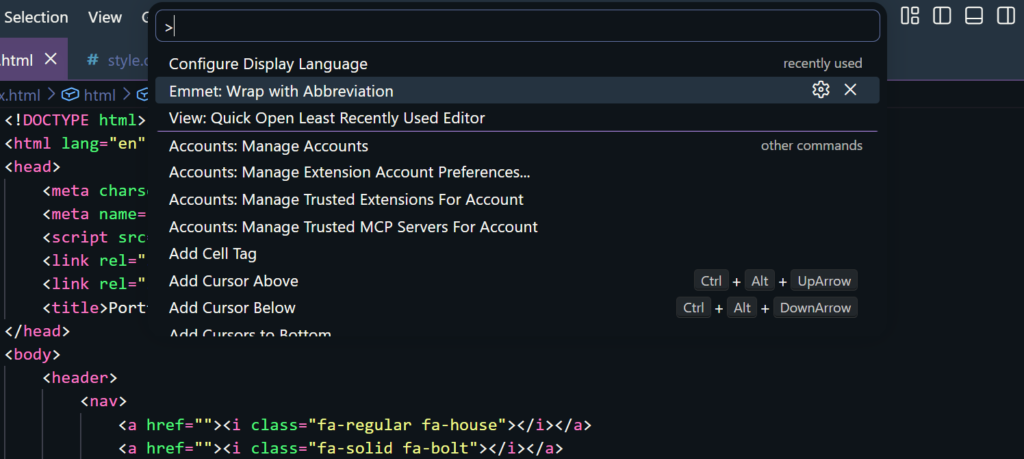
Shortcuts:
- Windows/Linux:
Ctrl + Shift + P - Mac:
Cmd + Shift + P - The Play: Use it for everything from changing your color theme to running specific GitLens commands.
2. Quick Open (File Search)
Instead of manually hunting through complex folder trees, this shortcut lets you locate and open any file in your workspace just by typing part of its name.
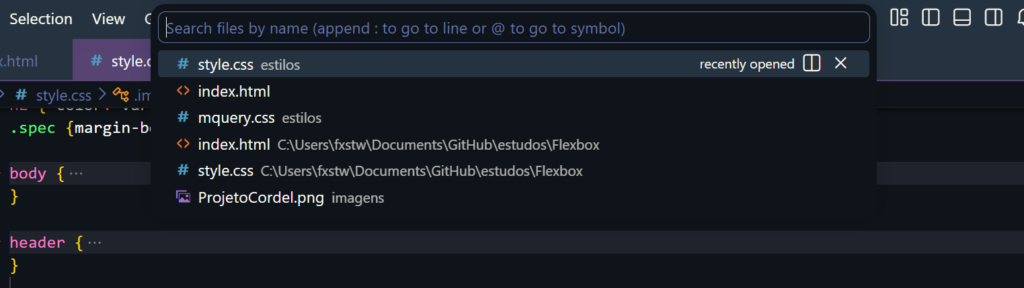
Shortcuts:
- Windows/Linux:
Ctrl + P - Mac:
Cmd + P - Pro Tip: Once the window is open, type
@to navigate through symbols (functions and variables) within the selected file.
3. Select Next Occurrence
This shortcut enables multi-cursor editing. It allows you to select a word and add the next identical instance to your selection, making it possible to edit multiple locations simultaneously.
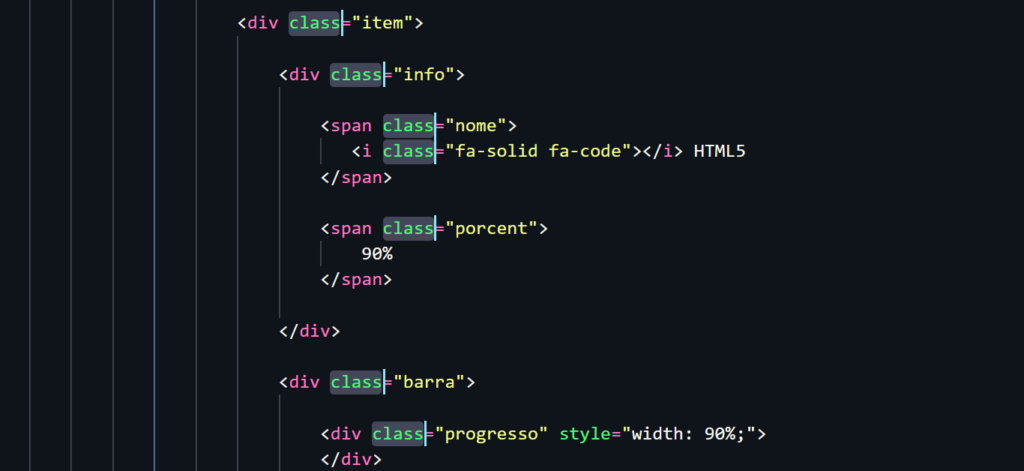
Shortcuts:
- Windows/Linux:
Ctrl + D - Mac:
Cmd + D - The Play: This is the fastest way to safely rename local variables without using complex refactoring tools.
4. Move Lines (Up/Down)
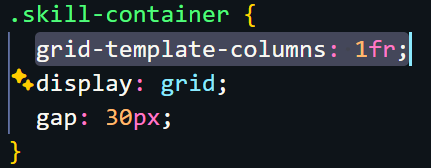
Eliminate the “cut and paste” cycle. With this command, you can shift the line where your cursor is (or a selected block) up or down within the code structure.
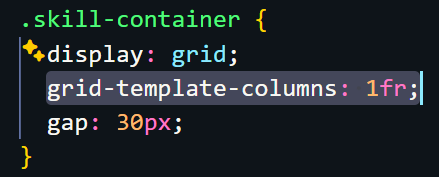
Shortcuts:
- Windows/Linux:
Alt + ↑ / ↓ - Mac:
Option + ↑ / ↓ - The Play: It maintains indentation integrity and speeds up logic reorganization.
5. Go to Definition
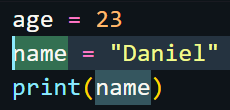
Essential for navigating large projects. This shortcut instantly jumps your cursor to where a function or variable was originally declared.
- Keyboard:
F12 - Mouse:
Ctrl + Click(Win/Linux) orCmd + Click(Mac) - The Play: Quickly understand how external libraries or modules work without manually searching for the source file.
A Personal Note from the Field
I’ll be honest with you: don’t try to memorize them all at once. This was one of the biggest mistakes I made when I started programming, and it often resulted in my code remaining incomplete because I was too focused on the “how” rather than the “what.”
Start with these five basic shortcuts for a week until they become automatic. Gradually, you can add new commands to your repertoire. Efficiency is a marathon, not a sprint.