
Professionalism in Code
Professionalism in coding is what sets apart a developer who just “delivers tasks” from one who builds sustainable and productive solutions. Maintaining a professional stance means eliminating wasted time, ensuring the team works in a consistent environment, and using available tools to focus on logic rather than repetitive tasks.
A well-configured environment allows you to navigate through the codebase at the “speed of your thought,” transforming complex commands into muscle memory and elevating the final quality of the code.
Check out the 7 tips below to be a pro in VS Code!
1. Mastering Keyboard Navigation
Constantly reaching for the mouse during programming breaks your train of thought and creates friction in development.
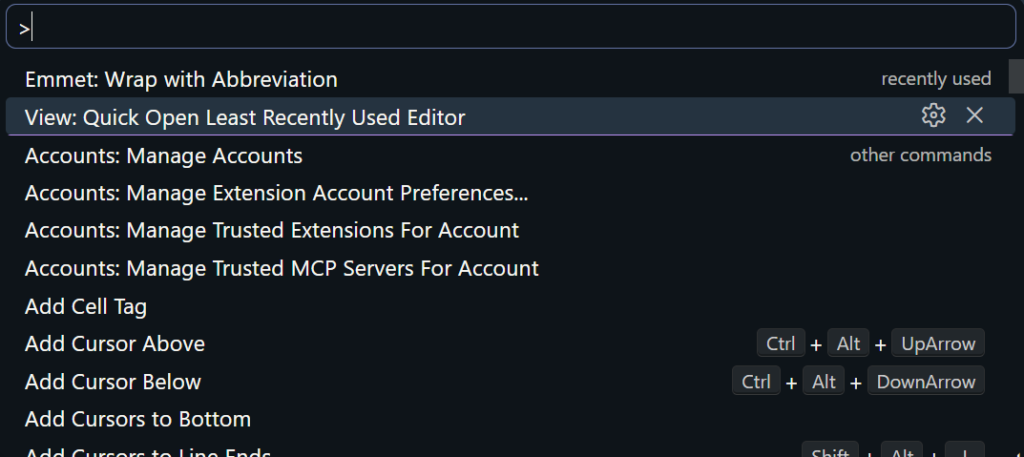
- Example: Use the Command Palette (
Ctrl+Shift+P) and Quick Open (Ctrl+P). - The Difference: Mastering the use of the multi-cursor (
Ctrl+D) allows you to perform edits in multiple spots simultaneously, saving valuable seconds.
2. Automation with Custom Snippets
Writing repetitive structures or boilerplate from scratch is a tedious task that consumes time and leaves room for errors.
Example: Create Snippets to insert entire blocks of code with just a few letters and the Tab key.
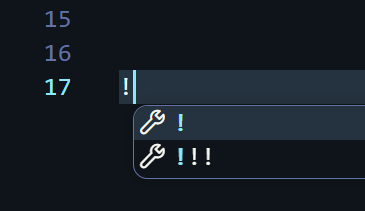
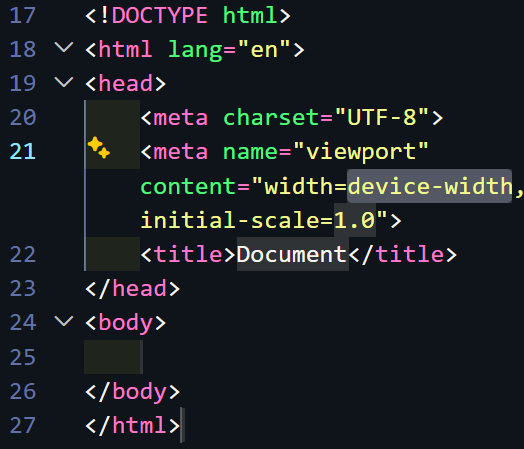
- Result: Increases speed and ensures code consistency, following the standards defined by the team.
3. Project-Specific Settings
Not all projects have the same requirements. What works in Java might not be ideal for JavaScript.
- Example: Use the
.vscode/settings.jsonfile inside the project folder to define local rules (tab size, hiding unnecessary folders likenode_modules).
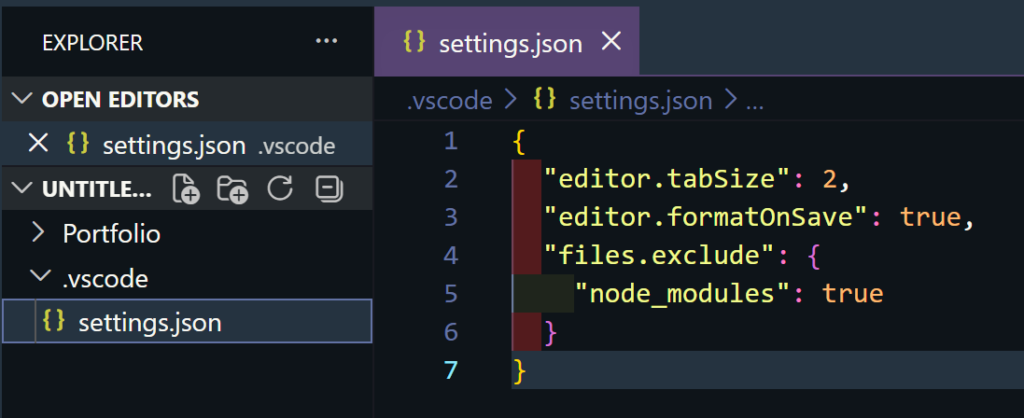
- Advantage: It ensures that the entire team shares the same environment by including these settings in version control.
4. Debugging over Manual Logs
Relying exclusively on print commands in the console to find errors is a limited practice that heavily pollutes the code.
- Professional Practice: Using the native debugger to pause execution at breakpoints, inspect variables in real-time, and analyze the call stack.
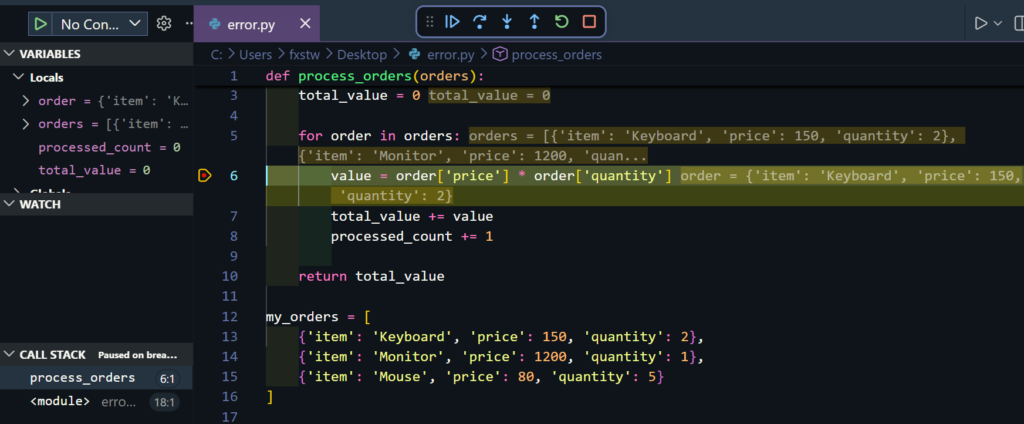
- Result: Identification of the root cause of complex bugs much faster and more accurately.
5. Environment Performance Audit
A slow development environment hinders delivery. It is your responsibility as a professional to periodically audit the editor’s performance.
- Example: Use commands like “Show Running Extensions” to identify tools causing latency or slowness during startup.
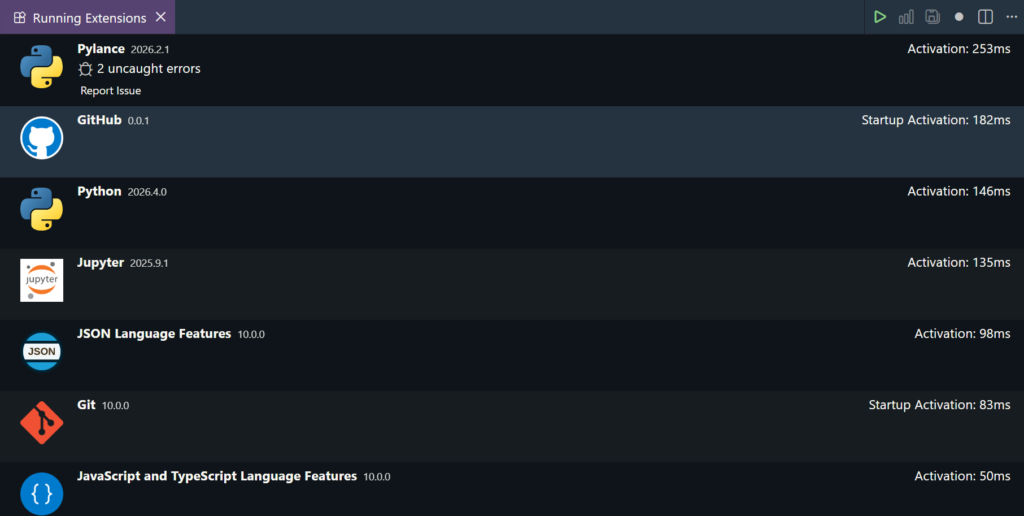
Goal: Keep the environment lightweight and disable unnecessary resources to ensure the focus remains on coding.
6. Native Environment Sync
Working on multiple machines should not be an excuse for disorganization.
- Example: Native synchronization to keep preferences, keyboard shortcuts, and snippets identical on any computer.
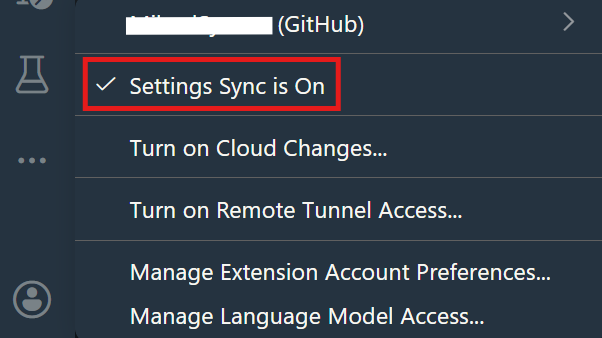
- Advantage: Avoids wasting time reconfiguring your workflow every time you switch devices.
7. Visual Legibility Optimization
The clarity of what is read directly impacts the speed of understanding the system’s logic.


- Technique: Configure the editor to use font ligatures (transforming symbols like
!=or=>into unique glyphs) and choose themes with appropriate contrast. - Result: Facilitates the reading of complex expressions and reduces eye strain during long sessions.
See also
I really want to help you on this journey of professional practices using VS Code! So, take a look at our article “4 Essential VS Code Extensions to Engineer Your Environment“!