
If you’ve been coding in Python for even a short time, chances are you’ve seen this:
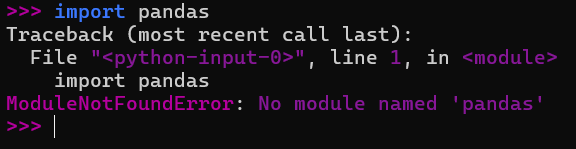
This error is very common, especially for beginners.
In simple terms, Python doesn’t know where it is.
Most of the time, the fix is simple. But sometimes, the cause is not so obvious, and that’s where people get stuck.
Let’s fix it step by step.
Quick Fix (Try This First)
Before anything else, run this:
python -m pip install module_name
Replace module_name with the name of your module.
In many cases, this alone solves the problem.
Why This Error Happens?
Here are the most common reasons (based on real situations developers face):
- The module was never installed
- You installed it in the wrong Python version
- The module name is slightly wrong
- Your project structure is confusing Python
- You have a file with the same name as a module
- You’re working across different environments
This isn’t rare at all. It’s actually a very typical Python issue.
Fixes That Actually Work
1. Make Sure You’re Using the Right Python
Sometimes the problem is not the module; it’s the Python version.
# Linux / Mac
which python

# Windows
where python
This shows which Python is running your code.
2. Install the Module the Right Way
Instead of using plain pip install, do this:
python -m pip install module_name
I usually use -m to avoid PATH errors; it usually does the trick when basic pip fails.
This ensures the module is installed in the correct environment.
3. Check If It’s Really Installed
Run a quick test:
import sys

# Display the path of the Python interpreter being used
print("Python executable:", sys.executable)

try:
    # Replace 'module_name' with the library you want to test
    import module_name
    print("✅ Module found and imported successfully.")
except ModuleNotFoundError:
    print("❌ Error: Module not found in this environment.")
This helps you confirm what’s actually happening.
4. Watch Out for File Name Conflicts
This is a classic mistake:
# ❌ Bad idea
math.py

# If you do this:
import math
Python may import your file instead of the real module.
5. Fix Your Project Structure
Sometimes Python just can’t “see” your files.
Example problem:
project/
├── main.py
└── utils/
    └── helper.py
Fix:
utils/
├── __init__.py
└── helper.py
This small file tells Python that this folder is a module.
I actually botched this exact part because I thought I was being a ‘structural visionary’ and decided to name my helper script json.py. Because, you know, it handled JSON. Groundbreaking, right?
6. Fix Import Paths (When Needed)
If your files are in different folders:
import sys
import ossys.path.insert(0, os.path.dirname(os.path.abspath(__file__)))
Use this carefully, it’s helpful, but not always the best long-term solution.
7. Use a Virtual Environment (Best Practice)
If you want to avoid this problem in the future, use a virtual environment:
python -m venv venv
Activate:
# Windows
venv\Scripts\activate

# Mac/Linux
source venv/bin/activate
Install modules:
pip install module_name
In real projects, this is the safest approach.
A Smarter Way to Debug
If you keep running into this error, use a small helper script:
import sysprint("Python:", sys.executable)
print("Version:", sys.version)
This quickly shows if you’re using the wrong environment.
Quick Summary
| Problem | Fix |
|---|---|
| Module not installed | pip install |
| Wrong Python version | python -m pip |
| File conflict | rename file |
| Bad structure | add init.py |
| Environment issue | use venv |
Final Thoughts
The ModuleNotFoundError can look confusing at first, but it’s usually easy to fix.
Start with:
- python -m pip install
If that doesn’t work, check your environment and project structure.
Once you understand how Python handles modules, this error becomes much easier to deal with.
FAQ
I installed the module, but it still doesn’t work. Why?
You are likely using a different Python environment than the one where the module was installed.